ListView dan DataPager merupakan web server control baru yang terdapat didalam ASP.NET 3.5. ListView termasuk ke dalam kategori DataDisplay control, yaitu control yang digunakan untuk menampilkan data. Kontrol ini dapat digunakan untuk menampilkan data secara tabular mirip dengan DataGridvView dan juga dapat digunakan untuk menampilkan data secara kolumnar seperti Repeater dan DataList. Namun apabila dibandingkan dengan Repeater dan DataList maka ListView ini mempunyai beberapa kelebihan diantaranya ialah Sorting, Grouping dan Updatable.
DataPager merupakan kontrol yang digunakan untuk menambahkan fitur paging pada DataDisplay control secara mudah ( I mean really-really simple :) ) yang selama ini hanya dimiliki oleh DataGridView control.
Penggunaan ListView kontrol didasari pada Template-template yang mirip dengan Repeater dan DataList. LayoutTemplate digunakan sebagai placeholder yang nantinya akan diisi dengan data yang didefinisikan di ItemTemplate. Main root atau LayoutTemplate dapat diisi oleh table, div, atau container control lainnya.
In this article i would like to show you how to use ListView and DataPager control combined with UpdatePanel and UpdateProgress ajax control...Ok...seperti biasa kita gunakan database Northwind yang menjadi favorit sebagai database contoh :) ...it's simpler rather than the AdventureWorks sample database, he he he...here is the following step by step :
- Add LinqDataSource as DataSource control. Mungkin disini saya tidak menjelaskan caranya menggunakan LinqDatasource. Anda bisa menggunakan datasource control lainnya seperti SQLDataSource. LinqDS ini saya isi dengan tabel Products.
- Tambahkan UpdatePanel control yang terdapat didalam ToolBox Ajax Extensions. Isi ContentTemplate nya dengan ListView control yang telah di set DataSourceID propertinya ke LinqDS diatas.
- Didalam LayoutTemplate ListView saya menggunakan Table sebagai main root nya. Berikut potongan code nya :
1: <asp:UpdatePanel ID="UpdatePanel1" runat="server">
2: <ContentTemplate>
3: <asp:ListView ID="lvProducts" runat="server" DataSourceID="NorthwindLinqDataSource"
4: EnableViewState="False">
5: <LayoutTemplate>
6: <table>
7: <tr id="itemPlaceholder" runat="server" />
8: </table>
- Untuk menjadikan elemen HTML sebagai placeholder di LayoutTemplate ada dua cara untuk menggunakannya. Cara pertama yaitu berikan value "itemPlaceholder" ke id container controlnya. Pada contoh di atas elemen "<tr>" digunakan sebagai placeholder. Cara yang kedua yaitu set properti ItemPlaceholderID ke value dari id container control yang akan digunakan. Contoh kode nya seperti ini :
1: <asp:ListView ID="lvProducts" runat="server" DataSourceID="NorthwindLinqDataSource"
2: EnableViewState="False" ItemPlaceholderID="thePlaceholder">
3: <LayoutTemplate>
4: <table>
5: <tr id="thePlaceholder" runat="server" />
6: </table>
- Untuk keperluan paging, tambahkan control DataPager, tempatkan didalam LayoutTemplate setelah element "<table>" , dan cukup isi properti PagedControlID nya dengan id control yang akan di paging. Style pagi number bisa anda pilih sesuai dengan selera...properti ButtonCount digunakan untuk menampilkan jumlah button atau jumlah angka paging yang akan muncul di DataPager.
1: <LayoutTemplate>
2: <table>
3: <tr id="thePlaceholder" runat="server" />
4: </table>
5: <asp:DataPager ID="listPager" runat="server" PageSize="5" PagedControlID="lvProducts">
6: <Fields>
7: <asp:NumericPagerField ButtonCount="5" ButtonType="Link" />
8: </Fields>
9: </asp:DataPager>
10: </LayoutTemplate>
- Di ItemTemplate saya definisikan element "<tr>" dan "<td>" untuk menampilkan datanya. Tidak ada yang istimewa didalam template ini. Saya gunakan One-Way data binding syntax expression yaitu "Eval" karena sifatnya hanya ingin ditampilkan secara read only.
1: <ItemTemplate>
2: <tr>
3: <td colspan="2" align="center" style="background-color: Black; color: Yellow">
4: <%#Eval("ProductName") %>
5: </td>
6: </tr>
7: <tr>
8: <td align="left">
9: Price :
10: <%#Eval("UnitPrice") %>
11: </td>
12: <td align="left">
13: Stock :
14: <%#Eval("UnitsInstock") %>
15: </td>
16: </tr>
17: </ItemTemplate>
- Tambahkan UpdateProgress control untuk visualisasi processing yang sedang berlangsung. DisplayAfter digunakan untuk menampilkan UpdateProgress sesaat sebelum beberapa milisecond yang kita tentukan.
1: <asp:UpdateProgress ID="UpdateProgress1" runat="server" AssociatedUpdatePanelID="UpdatePanel1"
2: DisplayAfter="5" DynamicLayout="true">
3: <ProgressTemplate>
4: Processing...Mohon sabar :)
5: <img alt="progressBar" src="images/progressbar_short.gif" style="width: 50px; height: 16px" />
6: </ProgressTemplate>
7: </asp:UpdateProgress>
- Code lengkapnya seperti dibawah ini :
1: <%@ Page Language="C#" AutoEventWireup="true" CodeFile="Default.aspx.cs" Inherits="_Default" %>
2:
3: <!DOCTYPE html PUBLIC "-//W3C//DTD XHTML 1.0 Transitional//EN" "http://www.w3.org/TR/xhtml1/DTD/xhtml1-transitional.dtd">
4: <html xmlns="http://www.w3.org/1999/xhtml">
5: <head runat="server">
6: <title>Untitled Page</title>
7: </head>
8: <body>
9: <form id="form1" runat="server">
10: <div>
11: <asp:ScriptManager ID="ScriptManager1" runat="server">
12: </asp:ScriptManager>
13: <asp:LinqDataSource ID="NorthwindLinqDataSource" runat="server" ContextTypeName="NorthwindDataContext"
14: TableName="Products">
15: </asp:LinqDataSource>
16: <p>
17: <span style="font-style: italic; font-weight: bold; color: Navy">Using The New ListView
18: and DataPager Control </span>
19: <br />
20: <span style="font-style: italic; font-weight: bold; color: Navy">Combined With UpdatePanel
21: and UpdateProgress </span>
22: </p>
23: <asp:UpdatePanel ID="UpdatePanel1" runat="server">
24: <ContentTemplate>
25: <asp:ListView ID="lvProducts" runat="server" DataSourceID="NorthwindLinqDataSource"
26: EnableViewState="False" ItemPlaceholderID="thePlaceholder">
27: <LayoutTemplate>
28: <table>
29: <tr id="thePlaceholder" runat="server" />
30: </table>
31: <asp:DataPager ID="listPager" runat="server" PageSize="5" PagedControlID="lvProducts">
32: <Fields>
33: <asp:NumericPagerField ButtonCount="5" ButtonType="Link" />
34: </Fields>
35: </asp:DataPager>
36: </LayoutTemplate>
37: <ItemTemplate>
38: <tr>
39: <td colspan="2" align="center" style="background-color: Black; color: Yellow">
40: <%#Eval("ProductName") %>
41: </td>
42: </tr>
43: <tr>
44: <td align="left">
45: Price :
46: <%#Eval("UnitPrice") %>
47: </td>
48: <td align="left">
49: Stock :
50: <%#Eval("UnitsInstock") %>
51: </td>
52: </tr>
53: </ItemTemplate>
54: </asp:ListView>
55: <p>
56: <asp:Button ID="btnChangeButtonCount" runat="server" Text="Change Page Size to : "
57: OnClick="btnChangeButtonCount_Click" ValidationGroup="pagesize" />
58: <asp:TextBox ID="TextBox1" runat="server" Width="58px" ValidationGroup="pagesize"></asp:TextBox>
59: <asp:UpdateProgress ID="UpdateProgress1" runat="server" AssociatedUpdatePanelID="UpdatePanel1"
60: DisplayAfter="5" DynamicLayout="true">
61: <ProgressTemplate>
62: Processing...Mohon sabar :)
63: <img alt="progressBar" src="images/progressbar_short.gif" style="width: 50px; height: 16px" />
64: </ProgressTemplate>
65: </asp:UpdateProgress>
66: </p>
67: </ContentTemplate>
68: </asp:UpdatePanel>
69: </div>
70: </form>
71: </body>
72: </html>
- Code Behind untuk button yang digunakan untuk merubah page size DataPager :
1: protected void btnChangeButtonCount_Click(
2: object sender, EventArgs e)
3: {
4: System.Threading.Thread.Sleep(3000);
5: DataPager listPager =
6: (DataPager)lvProducts.FindControl("listPager");
7: listPager.PageSize = Convert.ToInt32(TextBox1.Text);
8: }
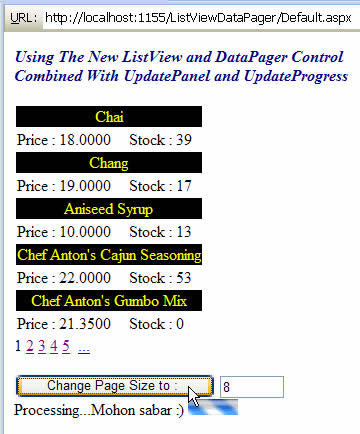
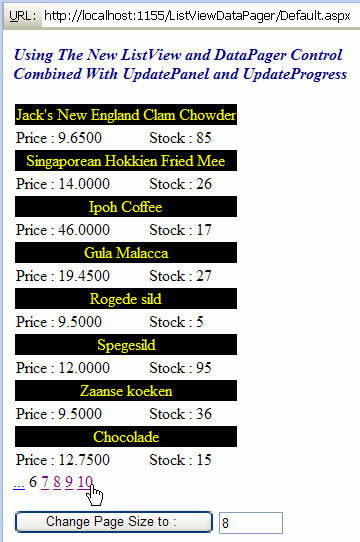
- Tampilan Layout Design Time :

No PostBack event...like usually all ajax control ;) ... see u on the next article...